
Total Freedom
Data lock-in is the enemy. We believe that if you create it, you own it.
Export Everything
Voyager lets you pull your data out of the cloud and into your hands.
The Formats
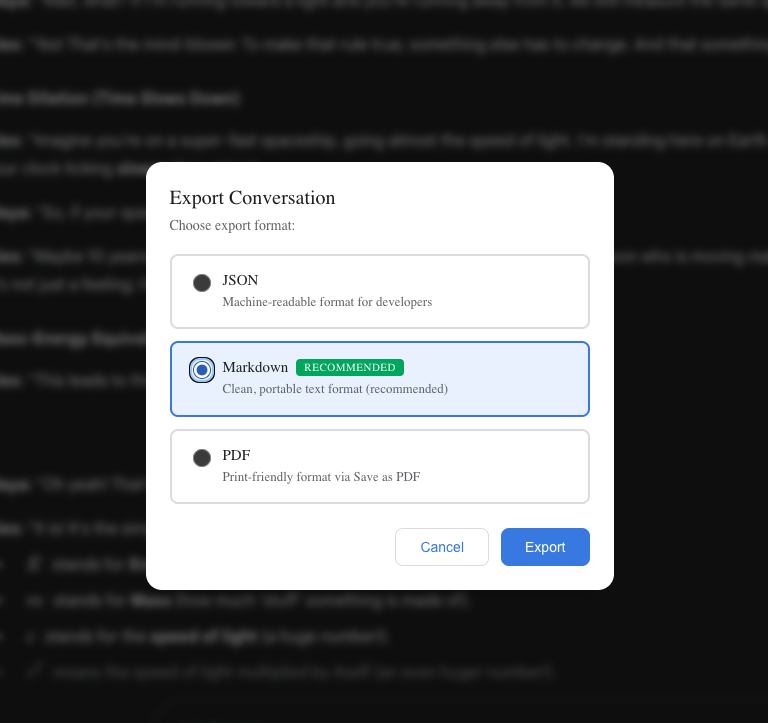
- Markdown: For your Obsidian vault or Notion. Clean, formatted text. (Safari Users: Images cannot be extracted due to browser limitations, use PDF export for images)
- PDF: For sharing or printing. Beautifully laid out, images included.
- JSON: Raw data. For developers who want to build on top of their history.
How to Export
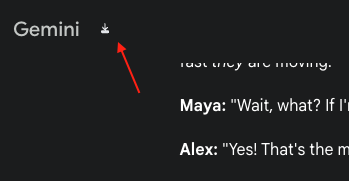
- Hover your mouse over the Gemini logo to see the Export Icon.
- Choose your format.
- Done.
It’s your data. Do what you want with it.
Step 1: Hover Logo
Step 2: The Choice
Safari PDF Export Note
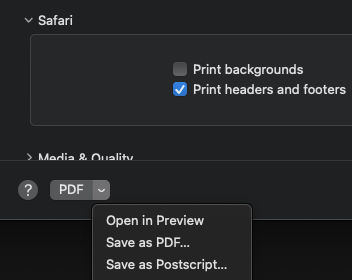
Exporting PDF on Safari requires a slightly different process (manual print):
- Click the Export button and select PDF format.
- Wait for about a second (allow the page to prepare print styles).
- Press
Command + Pto open the print dialog. - Select "Save to PDF" in the print dialog.
Contributors
No contributors
Changelog
No recent changes