
Cloud Sync
Sync your folders, prompt library, and other data to Google Drive to keep your experience consistent across devices.
Features
- Multi-Device Sync: Keep your configurations in sync across multiple computers using Google Drive.
- Data Privacy: Data is stored directly in your own Google Drive storage, ensuring privacy without third-party servers.
- Flexible Sync: Support for manual uploading and downloading/merging of data.
INFO
Coming Soon: The next version will support syncing starred conversations.
How to Use
- Click the extension icon in the bottom-right corner of the Gemini™ page to open the settings panel.
- Locate the Cloud Sync section.
- Click Sign in with Google and complete the authorization.
- Once authorized, click Upload to Cloud to sync your local data to the cloud, or Download & Merge to bring cloud data to your local machine.
💡 Quick Sync
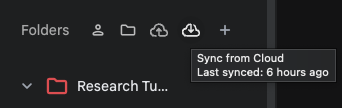
The easiest way is to click the "Upload to Cloud" or "Download & Merge" buttons at the top of the folder area in the left sidebar.
WARNING
Security Recommendation: Double Protection
While Cloud Sync offers great convenience, we strongly recommend that you also periodically back up your core data using local files.
- Full Export: Export a complete package containing all settings, folders, and prompts from "Backup & Restore" at the bottom of the settings panel.
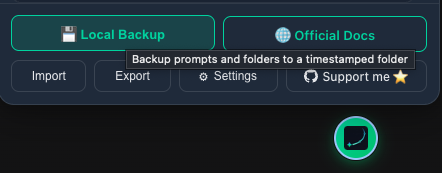
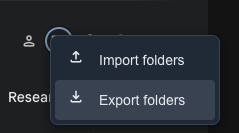
- Export All Folders: Click "Export" in the "Folders" section of the settings panel to back up all your folders and conversations, excluding prompts.
Contributors
No contributors
Changelog
No recent changes